> ## Documentation Index
> Fetch the complete documentation index at: https://brightdata-ipv6-release.mintlify.site/llms.txt
> Use this file to discover all available pages before exploring further.
# Quickstart
## How to start working with the browser extension:
1. For starting to work with our extension you will need to make sure you have at least 1 active zone in your bright data account in [My Proxy page](https://brightdata.com/cp/zones) or Add new Zone. For more Zone creation details visit our [Datacenter](/proxy-networks/data-center/introduction), [ISP](/proxy-networks/isp/introduction), [Residential](/proxy-networks/residential/introduction) and [Mobile](/proxy-networks/residential/introduction) guides.
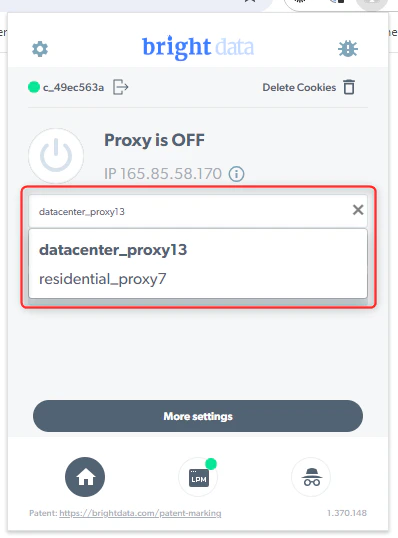
 1. Select the zone you like to work with in the extension:
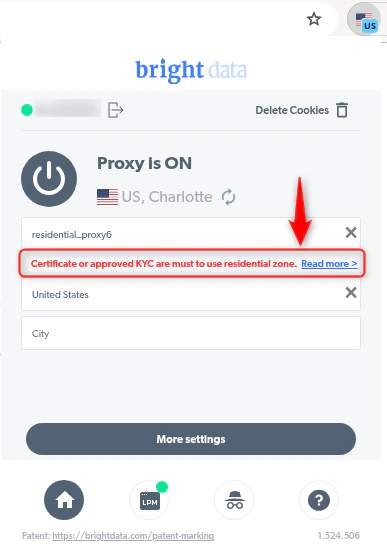
 1. If you selected our \*\*Residential \*\*network zone, and you get this notification: "Certificate or approved KYC are must to use residential zone" you need to install our certificate on your chrome browser. Browse here: [https://docs.brightdata.com/general/account/ssl-certificate#installation-instructions](https://docs.brightdata.com/general/account/ssl-certificate#installation-instructions) and click "Chrome" to get instuctions to setup the certificate. To read more on our residential network access modes browser here: [https://docs.brightdata.com/proxy-networks/residential/network-access](https://docs.brightdata.com/proxy-networks/residential/network-access)
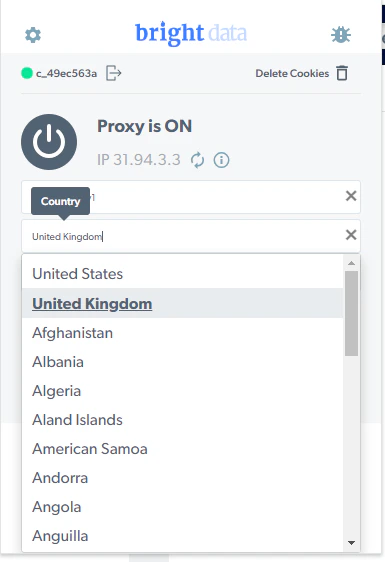
 1. Select or Change country and city geo-location. please note city can be selected with Residential and Mobile zones:
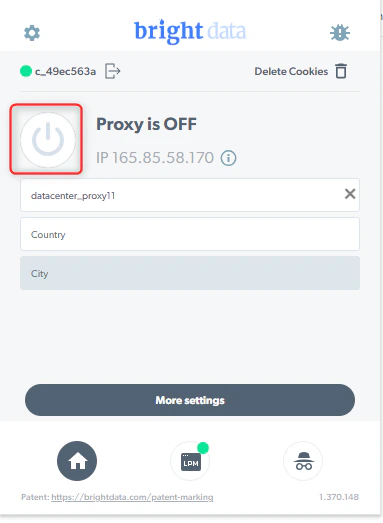
 1. Turn on the Proxy and start using it:
 ## How to enable city selection:
1. Go to [Control panel My proxy page](https://brightdata.com/cp/zones)
2. Click on the zone you would like to enable it (Residential/Mobile):
## How to enable city selection:
1. Go to [Control panel My proxy page](https://brightdata.com/cp/zones)
2. Click on the zone you would like to enable it (Residential/Mobile):
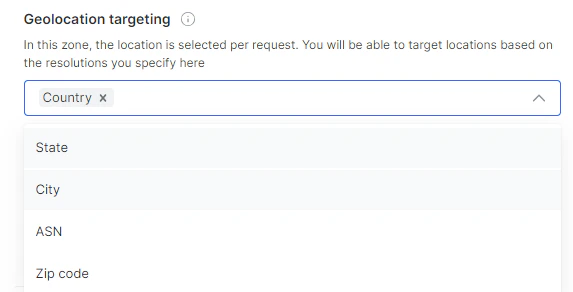
 1. Go to Geolocation targeting and select City:
 1. Save the zone