> ## Documentation Index
> Fetch the complete documentation index at: https://brightdata-ipv6-release.mintlify.site/llms.txt
> Use this file to discover all available pages before exploring further.
# 如何在 Android 上设置 Bright Data
> 快速在您的 Android 设备上配置 Bright Data 代理!该过程非常简单,不同设备之间仅有少许差异。
### 您的代理访问信息
Bright Data 代理按“代理区域”(Proxy zones)进行分组。每个区域包含其对应的代理配置。
要获取代理区域的访问权限:
1. 登录 Bright Data 控制面板
2. 选择现有代理区域或新建一个代理区域
3. 点击新的区域名称,并选择 **概览(Overview)** 选项卡
4. 在概览选项卡中,找到 **访问详情(Access details)**,并单击复制图标将代理访问信息复制到剪贴板
5. 您需要以下信息:代理主机(Proxy Host)、代理端口(Proxy Port)、代理区域用户名(Proxy Zone username)和代理区域密码(Proxy Zone password)
6. 点击复制图标,将文本复制到剪贴板,并粘贴到您的工具的代理配置中
### 访问详情示例
 ### 住宅代理访问
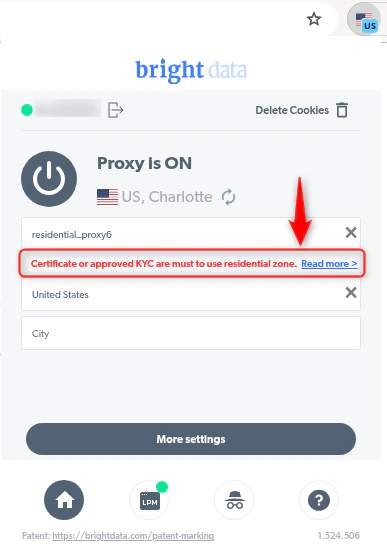
要使用 Bright Data 的 **住宅代理(Residential Proxies)**,您需要通过合规团队的验证或安装证书。[了解更多...](https://docs.brightdata.com/proxy-networks/residential/network-access)
### 目标是搜索引擎?
如果您的目标是 Google、Bing 或 Yandex 等搜索引擎,则需要使用专门的搜索引擎结果页(**SERP**)代理 API。请使用 Bright Data SERP API 来访问搜索引擎。\
[点击此处了解 Bright Data SERP 代理 API。](https://docs.brightdata.com/scraping-automation/serp-api/introduction)
### 避免工具中的 `PROXY ERROR`
一些工具会使用搜索引擎作为代理测试目标:如果您的代理测试失败,这可能就是原因。请确保您的测试目标域名不是搜索引擎(此设置在工具配置中,而非 Bright Data 代理的控制范围内)。
在 Android 设备上设置代理服务器既简单又灵活。您可以为 **移动数据** 或 **Wi-Fi** 配置代理。选择您的网络类型并按照以下步骤进行操作!
## 为移动网络配置代理
**步骤 1. 访问网络设置**\
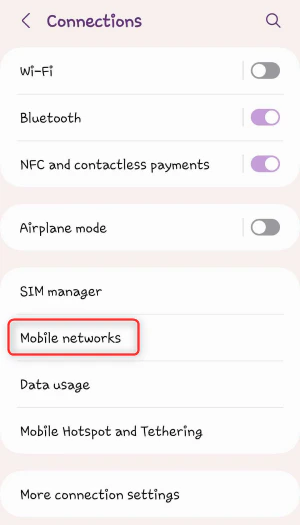
打开 **设置**,然后进入 **网络和互联网**(或 **连接**,具体取决于您的设备)。
**步骤 2. 查找 APN 设置**\
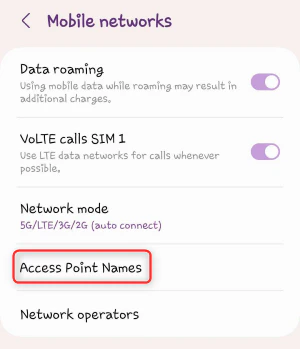
点击 **移动网络** 并选择 **接入点名称 (APN)**。
### 住宅代理访问
要使用 Bright Data 的 **住宅代理(Residential Proxies)**,您需要通过合规团队的验证或安装证书。[了解更多...](https://docs.brightdata.com/proxy-networks/residential/network-access)
### 目标是搜索引擎?
如果您的目标是 Google、Bing 或 Yandex 等搜索引擎,则需要使用专门的搜索引擎结果页(**SERP**)代理 API。请使用 Bright Data SERP API 来访问搜索引擎。\
[点击此处了解 Bright Data SERP 代理 API。](https://docs.brightdata.com/scraping-automation/serp-api/introduction)
### 避免工具中的 `PROXY ERROR`
一些工具会使用搜索引擎作为代理测试目标:如果您的代理测试失败,这可能就是原因。请确保您的测试目标域名不是搜索引擎(此设置在工具配置中,而非 Bright Data 代理的控制范围内)。
在 Android 设备上设置代理服务器既简单又灵活。您可以为 **移动数据** 或 **Wi-Fi** 配置代理。选择您的网络类型并按照以下步骤进行操作!
## 为移动网络配置代理
**步骤 1. 访问网络设置**\
打开 **设置**,然后进入 **网络和互联网**(或 **连接**,具体取决于您的设备)。
**步骤 2. 查找 APN 设置**\
点击 **移动网络** 并选择 **接入点名称 (APN)**。
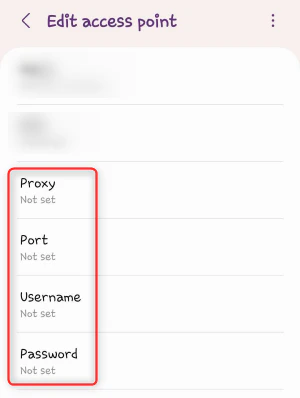
 **步骤 3. 修改 APN 详情**\
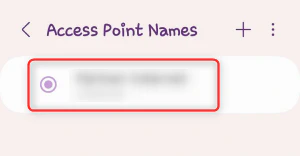
选择您的活动 APN 并填写以下字段:
**步骤 3. 修改 APN 详情**\
选择您的活动 APN 并填写以下字段:
 * **代理 (Proxy)**:输入 [`http://brd.superproxy.io/`](http://brd.superproxy.io/)
* **端口 (Port)**:33335
* **用户名 (Username)**:输入您的 Bright Data 代理用户名
* **密码 (Password)**:输入您的 Bright Data 代理密码
* **代理 (Proxy)**:输入 [`http://brd.superproxy.io/`](http://brd.superproxy.io/)
* **端口 (Port)**:33335
* **用户名 (Username)**:输入您的 Bright Data 代理用户名
* **密码 (Password)**:输入您的 Bright Data 代理密码
 **步骤 4. 保存并重新连接**\
保存您的更改,然后通过关闭并重新打开移动数据来刷新连接。
## 为 Wi-Fi 网络配置代理
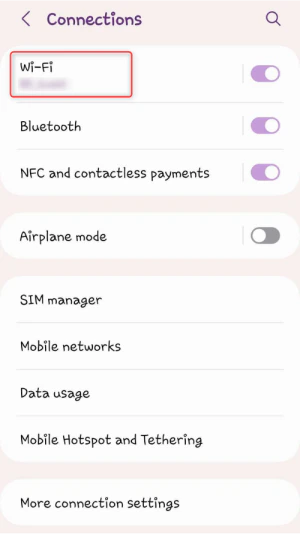
**步骤 1. 访问网络设置**\
打开 **设置**,然后进入 **网络和互联网(或连接)** > **Wi-Fi**。
**步骤 4. 保存并重新连接**\
保存您的更改,然后通过关闭并重新打开移动数据来刷新连接。
## 为 Wi-Fi 网络配置代理
**步骤 1. 访问网络设置**\
打开 **设置**,然后进入 **网络和互联网(或连接)** > **Wi-Fi**。
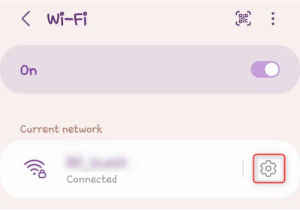
 **步骤 2. 选择您的 Wi-Fi 网络**\
点击已连接的网络并选择 **设置**(或 **编辑**)图标。
**步骤 2. 选择您的 Wi-Fi 网络**\
点击已连接的网络并选择 **设置**(或 **编辑**)图标。
 **步骤 3. 启用手动代理配置**\
向下滚动至 **高级选项**,将 **代理** 设置为 **手动**。
**步骤 4. 修改代理详情**\
提供以下信息:
* **主机 (Host)**:输入 [`http://brd.superproxy.io/`](http://brd.superproxy.io/)
* **端口 (Port)**:33335
点击 **保存** 以应用配置,并确保更改生效。
您已准备就绪!配置 **Bright Data** 代理后,您的 Android 设备将享受 **更安全、更私密** 的浏览体验,非常适合访问受限网站或提升在线安全性。
**步骤 3. 启用手动代理配置**\
向下滚动至 **高级选项**,将 **代理** 设置为 **手动**。
**步骤 4. 修改代理详情**\
提供以下信息:
* **主机 (Host)**:输入 [`http://brd.superproxy.io/`](http://brd.superproxy.io/)
* **端口 (Port)**:33335
点击 **保存** 以应用配置,并确保更改生效。
您已准备就绪!配置 **Bright Data** 代理后,您的 Android 设备将享受 **更安全、更私密** 的浏览体验,非常适合访问受限网站或提升在线安全性。